ASCIIgen
Turn an image into animated ASCII art. Export PNG, SVG or video, or copy code for your website.
Desktop browserLoads about 6 MB
Open this on a computer
ASCIIgen needs a window at least 1024px wide and a mouse or trackpad. Send yourself the link.
Overview
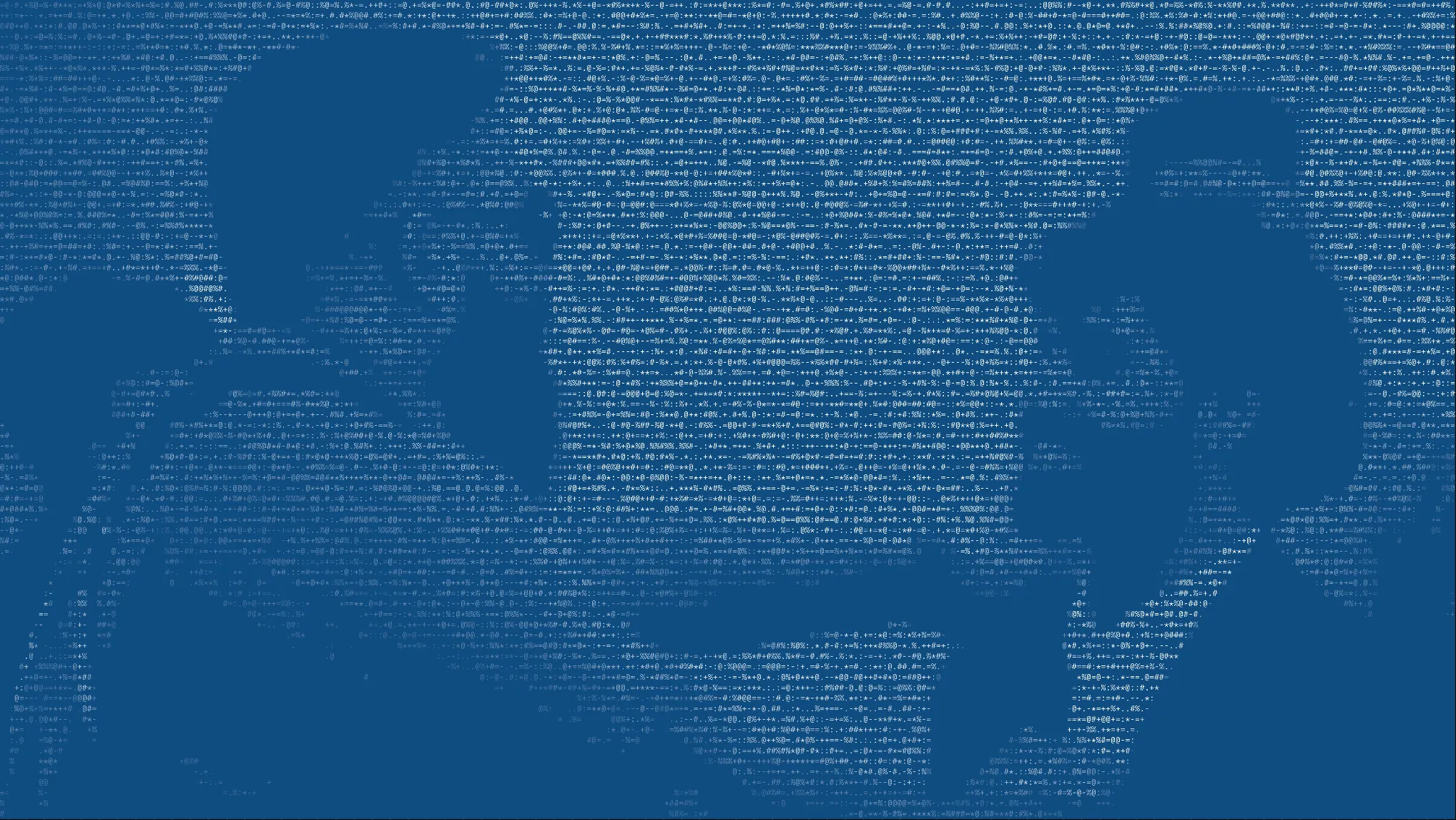
ASCIIgen turns an image into a grid of characters, then lets you animate how that grid appears. You choose how many characters go across, which characters stand for light and dark, and what colour they are. When it looks right, export it as an image, an SVG or a video, or copy the code to put the animation on your own website.
Your image stays in your browser. Nothing is uploaded.
How to use
- Pick an image. Drop one on Source, or keep the sample portrait. PNG, JPEG, WebP, AVIF, GIF and SVG work. A GIF uses its first frame.
- Choose the canvas. Under Settings, set the aspect ratio: 1:1, 3:2, 16:9, 3:4, 9:16, 2:3, 4:3 or Custom. The image fills the canvas and is cropped to fit, so crop your photo first if you want a particular part of it.
- Set the grid. Columns is how many characters go across. Fewer gives big, bold characters. More gives detail.
- Fix the tone. Brightness and Contrast change how light and dark are read. Cut-off empties the faintest cells, which clears a busy background.
- Check which part comes out solid. Bright areas get the dense characters. If your subject is darker than what is behind it, the subject comes out as empty space. Turn on Invert to swap them.
- Pick the characters and the colour. Choose a character Set under Characters, then a solid colour, a gradient or the image’s own colours under Ink. Set the background colour in Settings.
- Animate it (optional). Under Motion, pick an Effect: Scramble or Reveal. Progress is how much of the image has formed. To move it over time, switch on Timeline in Settings, expand the timeline, put the playhead where you want a change and press the diamond next to Progress. Do it again at another time with a different value.
- Export or copy. Use the buttons at the bottom of the panel.
A few things to know as you go:
- Open the timeline before you change a control that has keyframes. With the timeline closed, the change won’t show.
- Colour keyframes can’t be edited yet. Ink colour, Gradient and Background colour have diamonds too, but changing a colour after you have added a keyframe doesn’t update that keyframe or add a new one.
- Colours switch at a keyframe instead of fading, in the tool and on a website.
- Move the playhead to the finished image before you export a still. At time 0 the starting loop is scrambled characters, and Export PNG, Export JPG, Export SVG and Copy text all use the frame under the playhead. The finished image holds from about 2 to 4 seconds.
- To get the starting loop back, press Reset at the top of the panel. If you have used the tool before, it opens on your own last state until you do.
Options
- Settings
- Background on or off and its colour, the aspect ratio and canvas size, resolution scale, and the Timeline switch. Workspace sets the dots behind the canvas. They’re only for the editor and never appear in an export.
- Source
- The image. You can replace or remove it, rotate it 90° and flip it horizontally or vertically.
- Grid
- Columns: 40, 60, 80, 100, 120, 160, 200, 240 or 300 characters across. Rows follow the shape of the canvas.
- Tone
- Brightness, Contrast, Cut-off and Invert. Cut-off leaves cells with less ink than its value empty. 0 keeps every cell.
- Characters
- Mode: Ramp picks denser characters for brighter areas. Scatter places random characters and shows tone through opacity and colour. Set: Standard, Dense, Blocks or Custom. With Custom, type your own characters from lightest to densest. A leading space keeps the darkest areas empty.
- Ink
- Fill: Solid, Gradient or Source (the image’s own colours). Fade shadows makes characters in darker areas more transparent.
- Motion
- Effect: None, Scramble or Reveal. Progress is how much of the image has formed. Pattern is the order Reveal uses: Random order, Left to right, Top to bottom, From centre or Reading order. Flicker is how many characters dim briefly as the loop plays. 0 turns it off.
- Keyframes
- Progress, Brightness, Contrast, Cut-off, Flicker, Ink colour, Gradient and Background colour can all be keyframed on the timeline.
- Website Code
- Format: Web component or Animated SVG. Playback: Once plays until the image is complete, then holds. Loop repeats the timeline. Description is read out by screen readers in place of the characters.
- Image Export
- PNG, JPG or SVG. PNG and JPG come out at 2K, 4K or 8K. An SVG export is a still of the frame under the playhead.
- Video Export
- MP4 or WebM, at the current canvas size or 4K, at 30 frames a second. The video is as long as the timeline.
- Copy text
- Copies the characters of the frame under the playhead as plain text.
- Copy code
- Copies the animated art as code for a website, in the Format you chose.
Using it on your website
Copy code gives you something you paste into your page’s HTML. There’s nothing to host and nothing to install.
- Web component. A single
ascii-genelement with its data and script inside it. It draws on a canvas, keeps its shape on the page from the start so nothing jumps, and uses your Description as its label. Playback is Once or Loop. If the visitor has reduced motion turned on, it shows the finished image. - Animated SVG. An inline SVG that plays on its own. Scramble shows up as characters appearing in random order rather than cycling. It works best at 120 columns or fewer.
What carries over from the timeline:
- Both formats carry Progress, Ink colour and Background colour. The web component also carries Flicker, and Ink colour only for a Solid fill.
- Brightness, Contrast, Cut-off and Gradient are used at the playhead, not animated. The animated SVG uses Flicker at the playhead too.
The tool tells you when copied code is heavy: a web component over 150 KB, or an animated SVG over 1 MB or with more than 120 columns. Fewer columns or a Solid fill makes it lighter.
Questions
Is my image uploaded anywhere?
No. Everything happens in your browser. The image isn’t sent anywhere.
Can I keep my settings for next time?
Yes. The tool remembers its last state in your browser. Export Settings saves them as a file, and Import Settings loads that file back.
Why is Columns a list of steps and not a slider?
Every slider can be keyframed, and Columns shouldn’t be. Animating it would mean sampling the image again on every frame, and it couldn’t play on a website. A list of steps can’t be keyframed.
Which font does it use?
IBM Plex Mono, under the SIL Open Font License.
Does it work on a phone?
No. It needs a desktop or laptop browser.